Tutorial
Gemini Omni Image to Video Workflow Guide
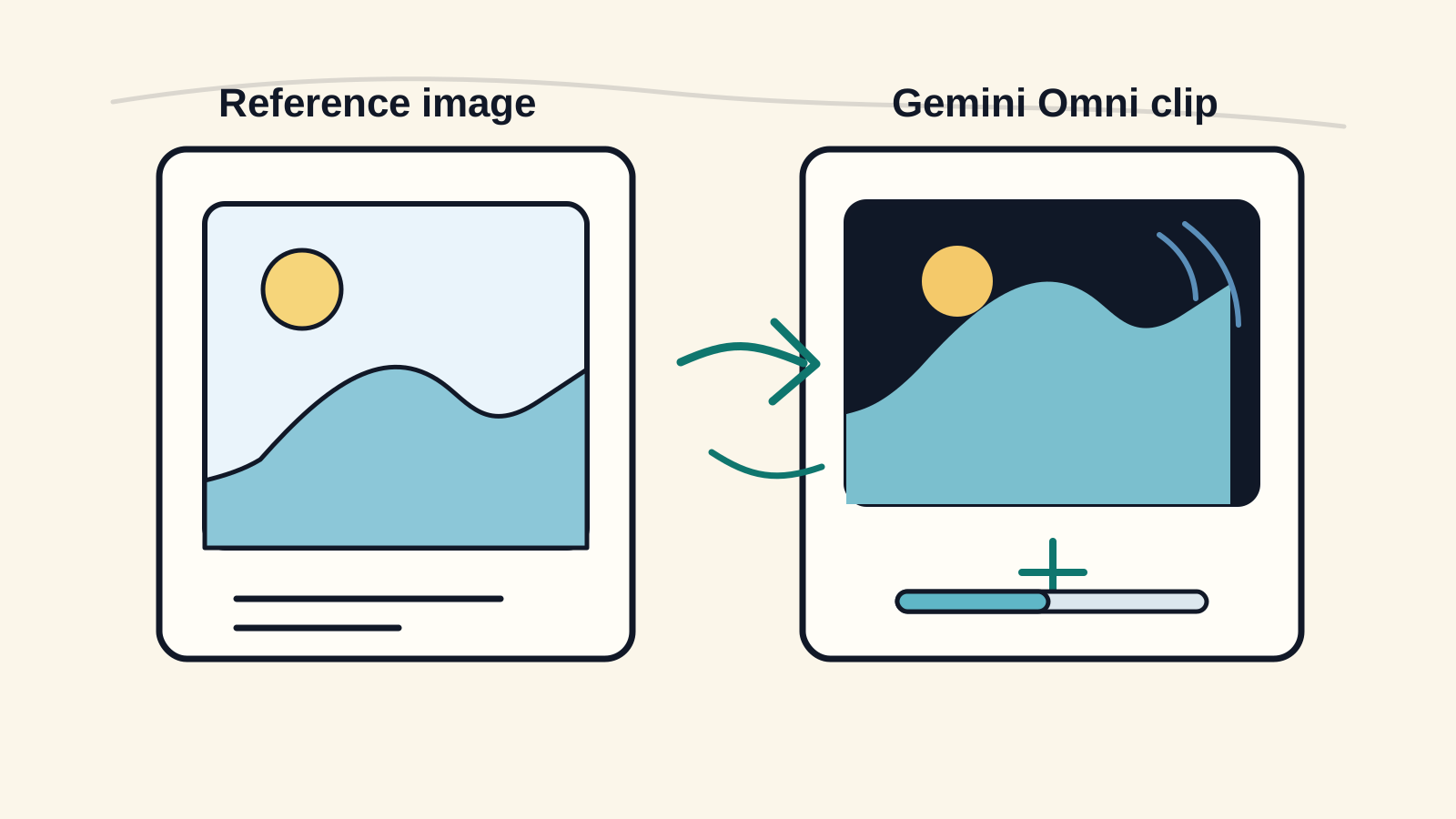
Learn a practical Gemini Omni image to video workflow for turning a still image into a short AI video clip with cleaner motion and stronger visual consistency.
Read articleLearn how to use Gemini Omni to upload a video and edit it with prompts, including background changes, object edits, style changes, motion fixes, and multi-step refinement.


The most useful way to understand Gemini Omni is not as another text-to-video generator. Its biggest advantage is AI video editing: you can upload an existing video, describe what you want to change, and keep refining the same clip with natural language prompts.
That makes Gemini Omni especially useful when you already have footage that is close, but not final. Maybe the background is wrong, the product color needs to change, the scene should feel more cinematic, or the clip needs a different visual style for an ad. Instead of rebuilding the shot from scratch in a timeline editor, you can ask Gemini Omni to modify the video while preserving the core subject, framing, and motion.
Gemini Omni is strongest when you start with a clear source video and ask for a specific visual change. The uploaded video gives the model timing, camera movement, pose, subject shape, and scene context. Your prompt tells it which part should change.
Good use cases include:
This is different from classic text-to-video. Text-to-video starts from nothing, so the model invents the scene. Video editing starts from your footage, so the job is more controlled: keep what matters, change only what you ask.
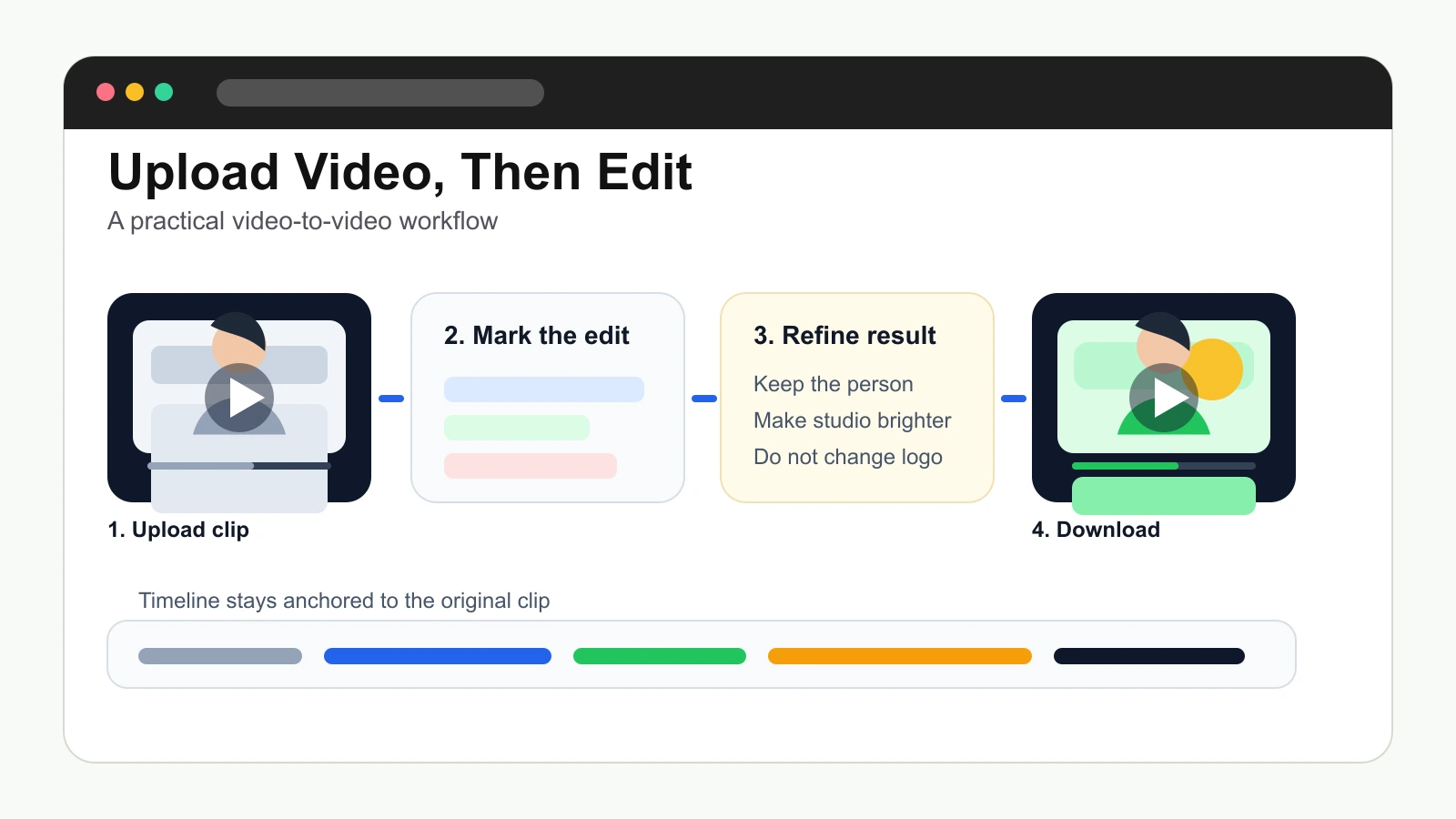
Use this workflow for your first Gemini Omni video edit:
For a first test, use a short clip with one main subject and simple movement. A talking head, product turntable, walking shot, fashion clip, or handheld product demo is easier to edit than a busy video with many people, fast cuts, small text, and chaotic camera motion.
The key is to separate the original video from the requested change. Do not write a generic prompt like "make this better." Tell Gemini Omni what to preserve and what to modify.
Use this structure:
Keep: the same person, pose, camera movement, timing, and framing.
Change: replace the plain office background with a modern studio set.
Style: clean commercial lighting, soft shadows, premium product-ad look.
Avoid: changing the face, hands, clothing shape, or adding random text.
For a product clip:
Keep the original product, camera orbit, label position, and hand movement.
Change the background to a warm luxury bathroom counter with soft reflections.
Make the lighting more cinematic and premium.
Do not distort the bottle shape, logo, cap, or label.
For a social video:
Keep the same person and body movement.
Change the room into a neon cyberpunk street at night.
Add rain reflections and colorful signs in the background.
Keep the face natural and avoid changing the mouth shape.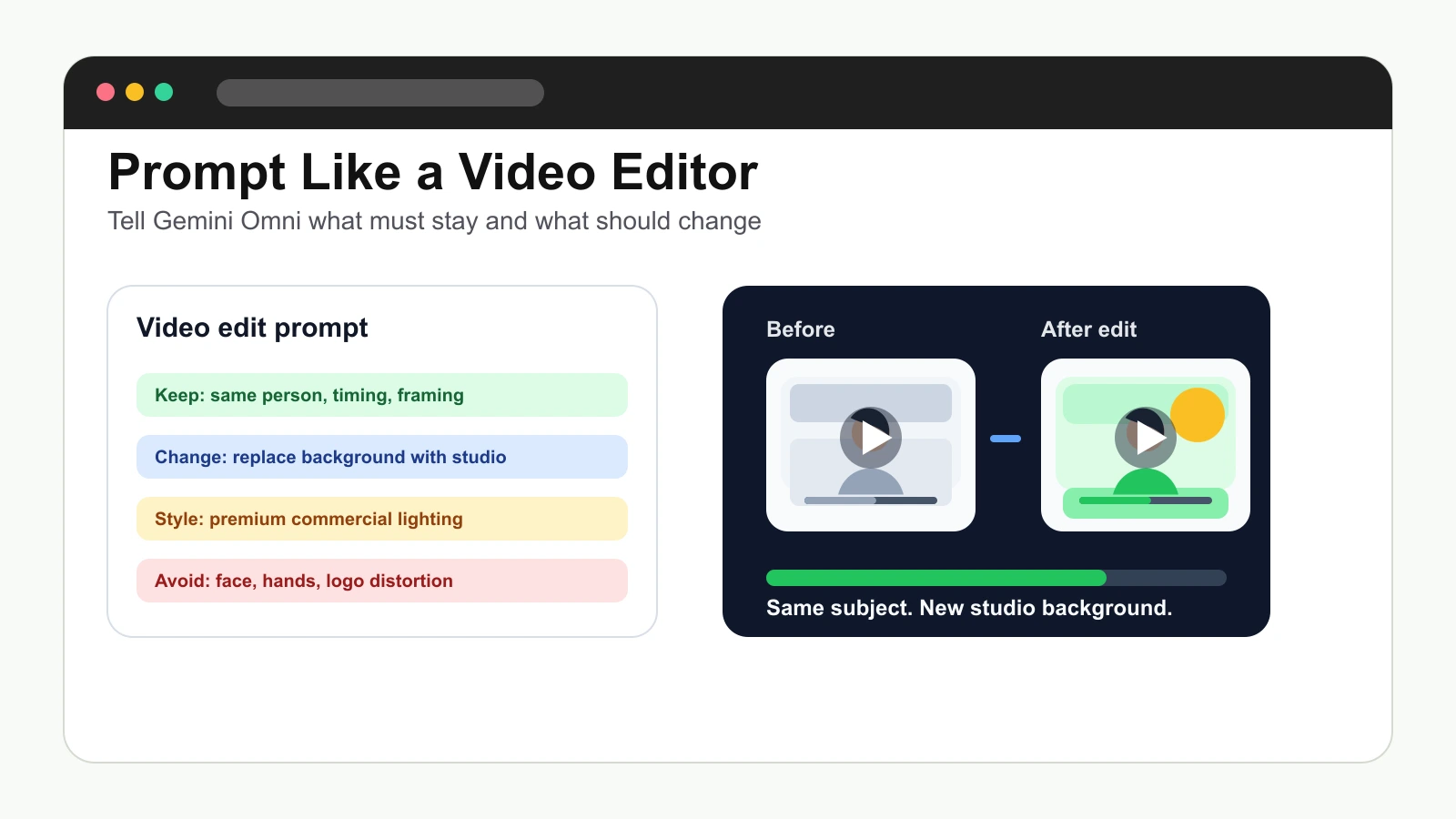
This prompt style gives Gemini Omni a controlled editing brief. The "keep" line protects the source video. The "change" line defines the actual edit. The "style" line controls mood. The "avoid" line reduces unwanted changes.
Start from an image, prompt, or product scene in Gemini Omni.
If you are editing a real clip, start from one of these patterns.
Keep the subject, movement, timing, and camera framing unchanged.
Replace the background with a bright modern kitchen.
Match the lighting and shadows so the person looks naturally inside the scene.
Do not change the face, body, clothing, or hand motion.Keep the original camera movement and hand position.
Replace the red cup with a matte black travel mug.
Keep the mug size realistic and aligned with the hand.
Do not change the background or the person's appearance.Transform this clip into a soft cinematic fashion campaign.
Keep the same model, pose, walking direction, and camera movement.
Add warm sunset light, shallow depth of field, and premium color grading.
Do not turn it into a cartoon or change the outfit structure.Keep the same street, subject, and camera path.
Change the scene from daytime to rainy evening.
Add wet pavement reflections and soft storefront lights.
Keep motion natural and avoid adding extra people.In every example, the prompt does two jobs: it anchors the original footage and names the edit. That is why prompt-based video editing is more reliable when the instruction is concrete.
Gemini Omni editing works best as a conversation. Instead of asking for five major changes in one prompt, make one strong edit, review it, then ask for a smaller follow-up.
For example:
This is useful because each step gives you a chance to protect what already works. If the subject looks good but the background is too dramatic, do not regenerate from scratch. Ask Gemini Omni to keep the current version and reduce the background intensity.
Your source video matters as much as the prompt. A clean source clip gives Gemini Omni a stronger base.
Use footage with:
Avoid starting with clips that have rapid cuts, heavy motion blur, crowded scenes, small logos, complex hands, or important on-screen text. These can still work, but they are harder to control.
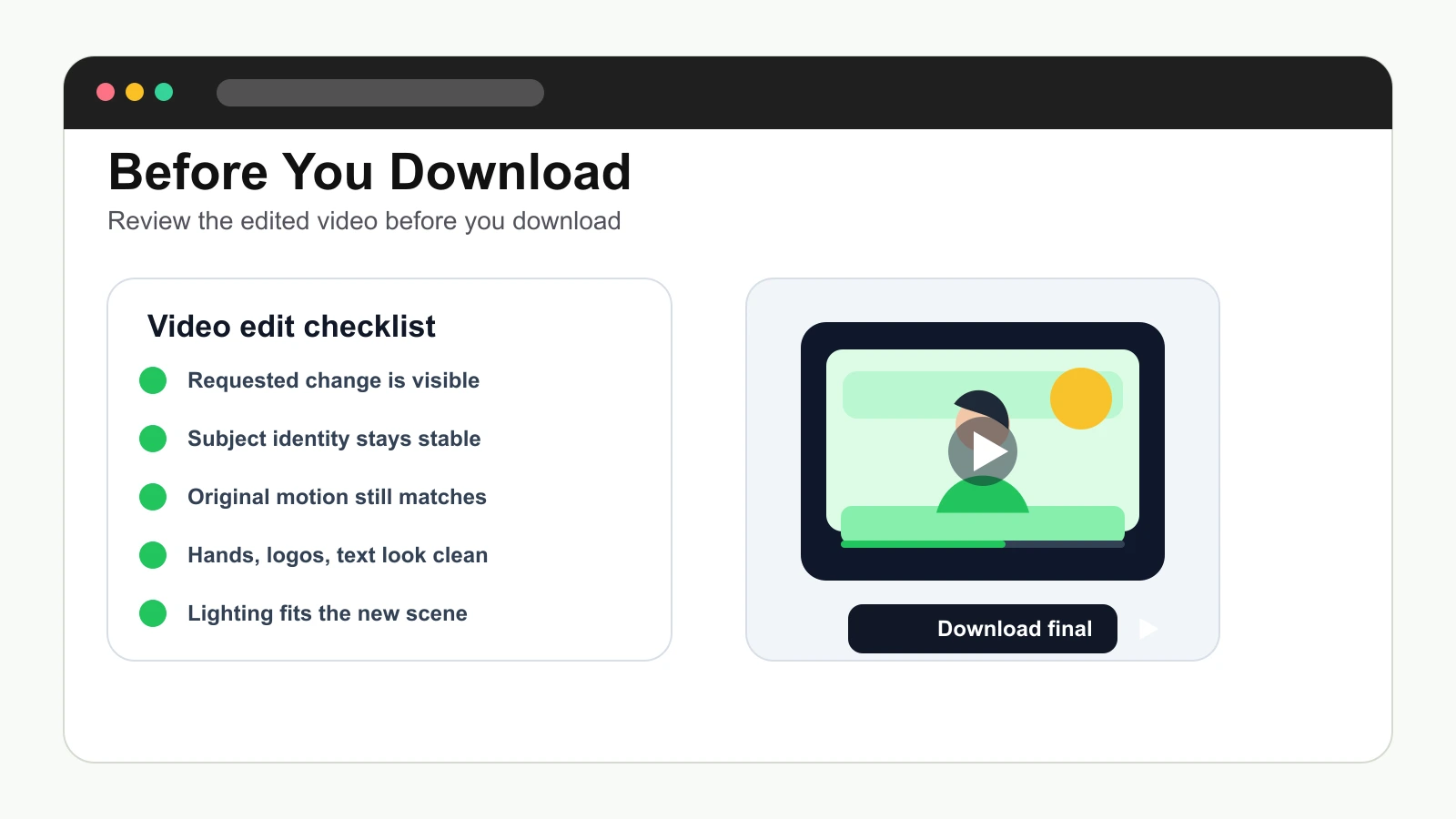
After Gemini Omni returns an edited video, check it like an editor:
If the edit is close, refine only the weak part. If the whole clip changed too much, make the prompt stricter: "keep the original subject, timing, framing, and motion unchanged." If the edit is too subtle, name the target more directly: "replace the background completely" or "change the jacket color to dark navy."
Gemini Omni can usually be tested through a browser-based workflow, depending on the current access plan and region. You do not need to search for a random desktop installer or APK just to try prompt-based video editing.
If you see free credits or a limited free start, use them for short tests. Video editing can require more capacity than simple image tasks, so keep early experiments short and focused. When you move into regular production, a paid plan or extra credits may be more practical.
The best way to use Gemini Omni is to treat it as an AI video editor. Upload a source video, protect the parts that must stay the same, describe one clear change, review the edited result, and continue with smaller follow-up prompts.
If you already have footage, Gemini Omni is most useful when it helps you turn one clip into multiple polished versions: different backgrounds, different moods, different product contexts, different ad styles, and better visual direction without rebuilding the video from zero.
Turn ideas, text prompts, reference images, and video clips into polished visual assets with Gemini Omni. If this article helped, the fastest next step is to try the product.
Free credits on signup. Upgrade when your workflow needs more capacity.
Continue from this article into the most useful Gemini Omni tools and creative workflows.
Start from the main Gemini Omni workspace for text-to-video, image-to-video, and reference-led video testing.
Create source images, references, and campaign visuals before moving into video.
Use the video workspace when you want direct access to Gemini Omni generation controls.
Try ready-made effects when you need a fast template-style creative result.
Review the API-focused page for builders comparing Gemini Omni image generation options.
Explore related AI video and image tools across our broader creator stack.
Use MovArt when you want a broad creative video workspace with image, video, effects, and editing tools.
Use Wan 2.7 for Wan-focused model testing across text, image, reference, and audio-led workflows.
A stable Wan baseline for text-to-video and image-to-video comparisons.
Follow the newer Wan 3.0 positioning and video workflow surface.
More posts in the same locale you may want to read next.
Learn a practical Gemini Omni image to video workflow for turning a still image into a short AI video clip with cleaner motion and stronger visual consistency.
Read article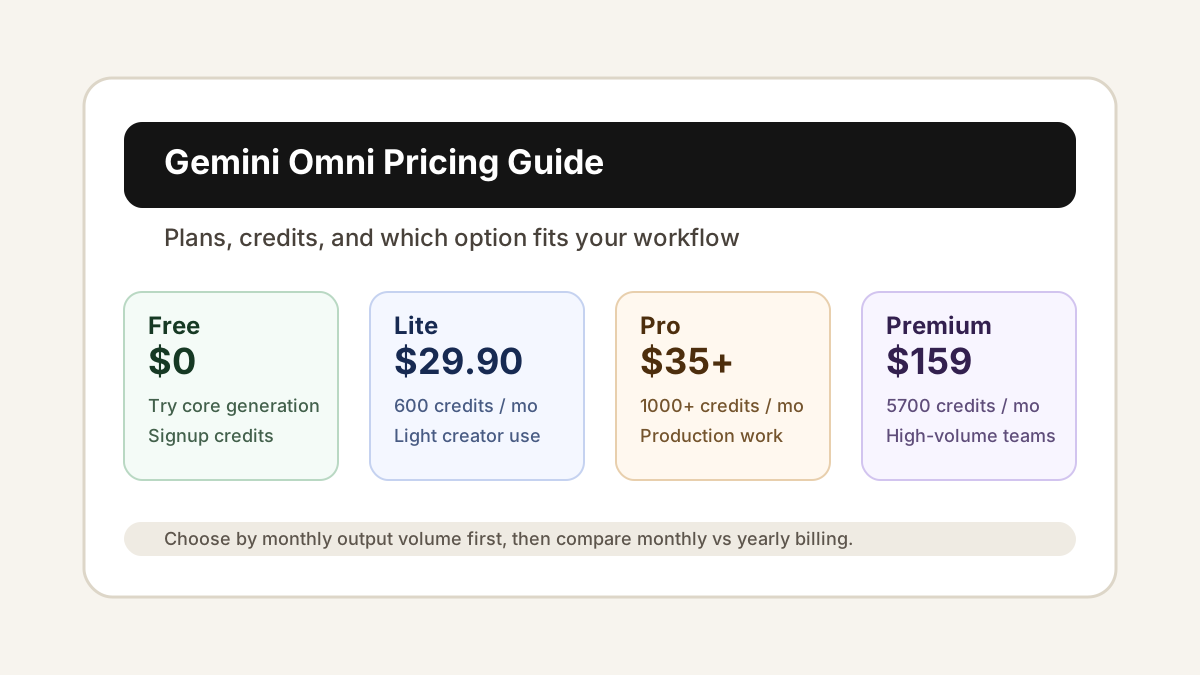
Gemini Omni video generator pricing explained: free credits, Lite, Pro, Premium, credit packs, monthly billing, and yearly billing.
Read articleMore practical guides for AI video models, image-to-video workflows, and prompt planning.
Compare Wan model versions by capability, workflow, and practical use case.
Plan product image-to-video shots with stronger source images, prompts, and review steps.
Use a practical checklist for subject, camera, motion, lighting, and output review.
Plan prompts, first-frame inputs, and controlled Wan 2.2 generation workflows.