Tutorial
Gemini Omni Pricing: Plans, Credits and Costs
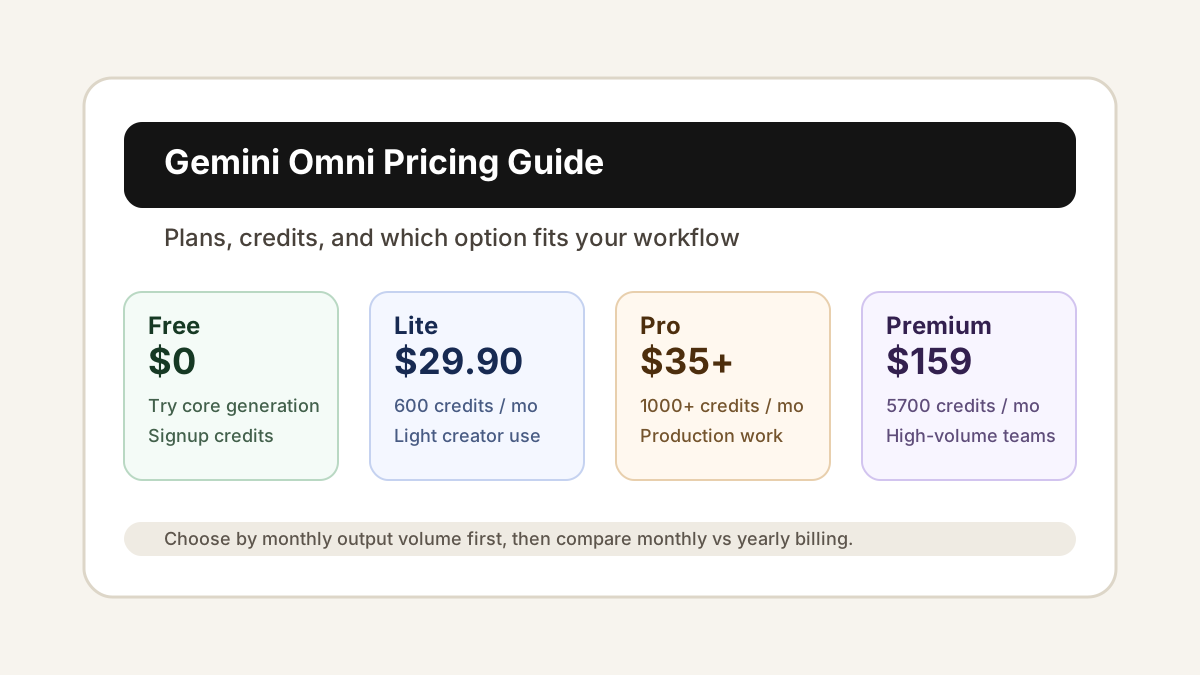
Gemini Omni video generator pricing explained: free credits, Lite, Pro, Premium, credit packs, monthly billing, and yearly billing.
Read articleLearn a practical Gemini Omni image to video workflow for turning a still image into a short AI video clip with cleaner motion and stronger visual consistency.

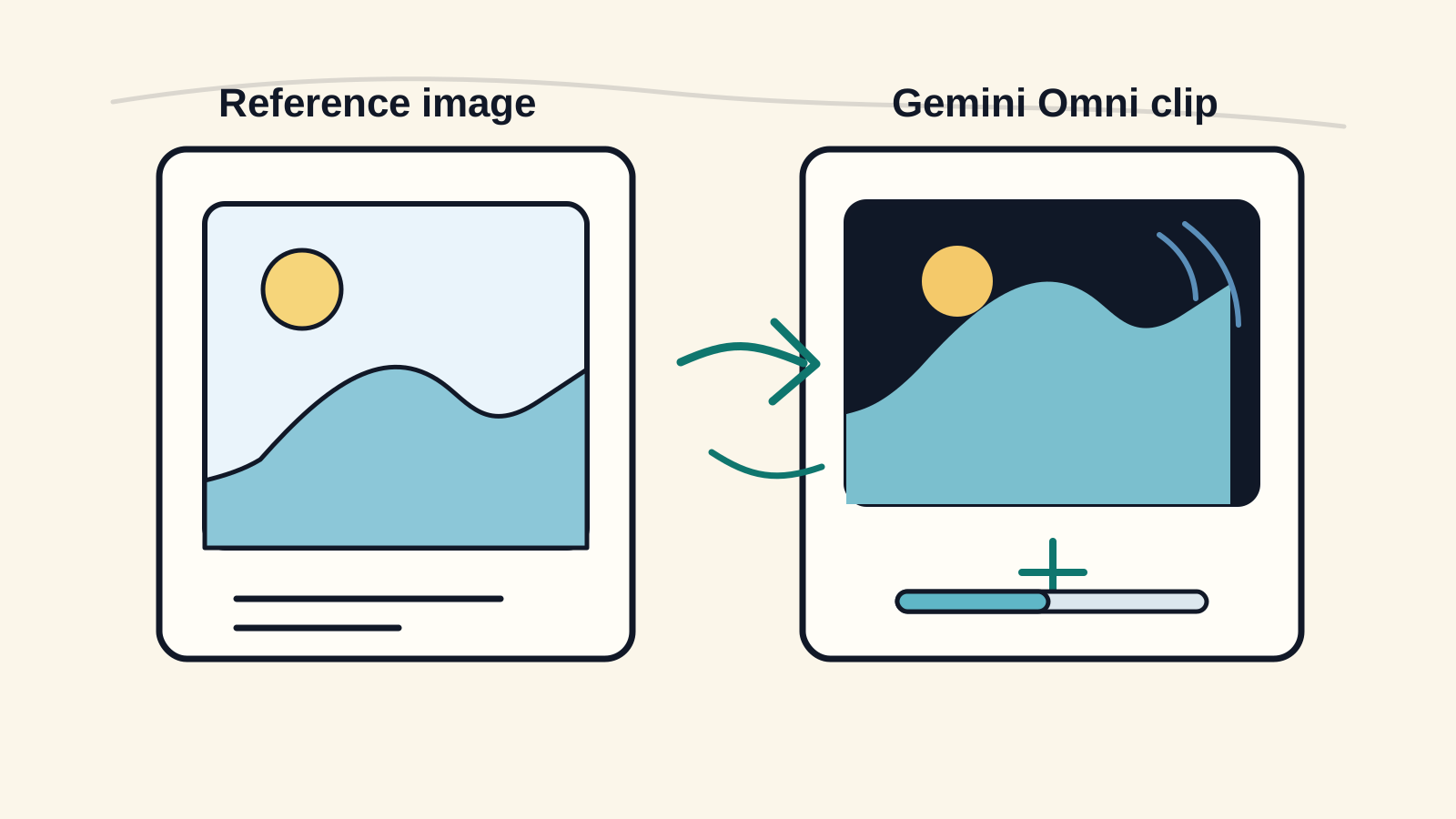
Gemini Omni image to video generation works best when you treat the source image as the anchor, not just a loose suggestion. The still image gives the model identity, composition, lighting, and subject details. Your prompt should then describe the motion you want to add without asking the scene to become something else.
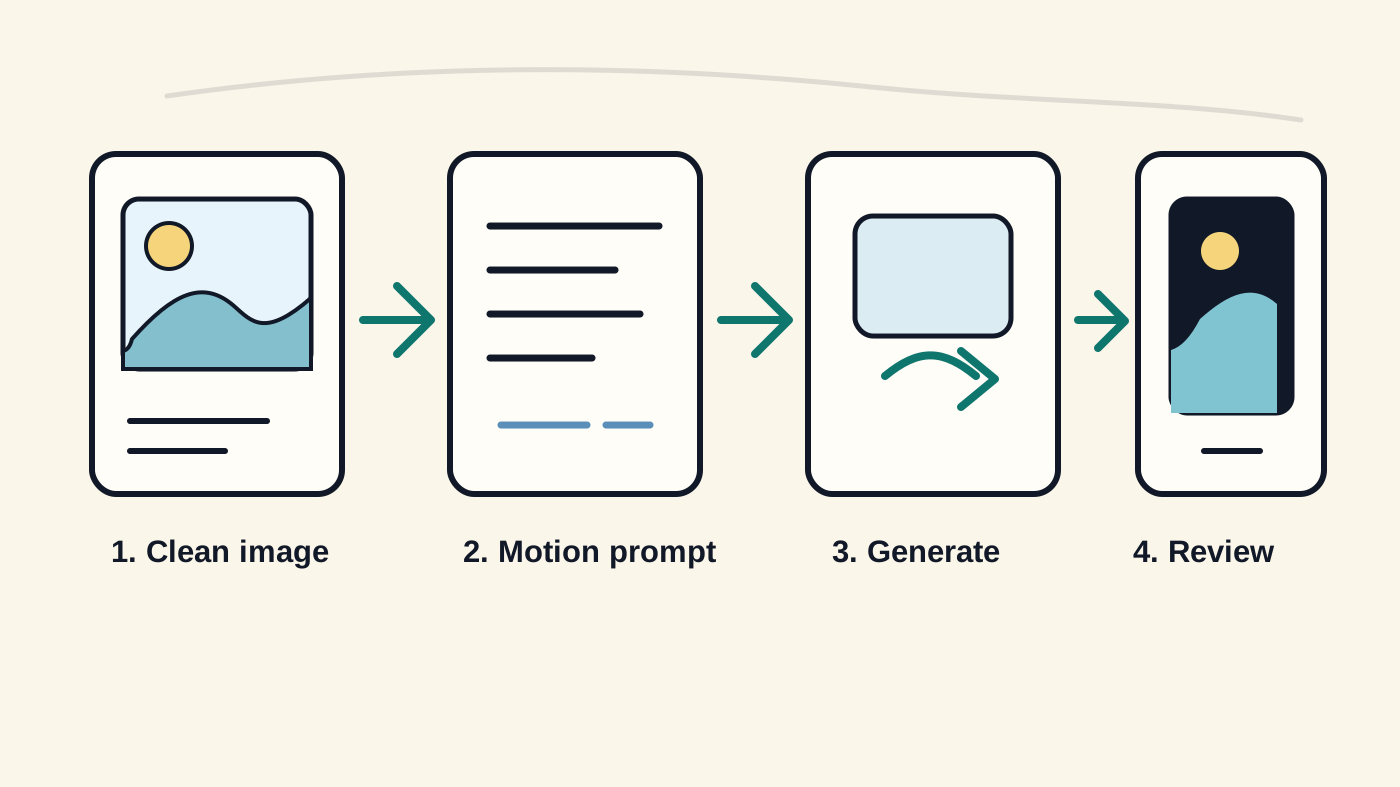
This guide walks through a practical workflow for turning one strong image into a short AI video clip. It is written for product shots, character references, social posts, landing page visuals, and creative tests where consistency matters more than surprise.
The best input image is simple, readable, and already close to the final frame you want. A clean product photo, a centered character, a clear app screenshot, or a composed scene gives Gemini Omni less room to reinterpret the subject.
Before generating, check the image against this short list:
If the image is noisy or overloaded, simplify it first. A better still image usually does more for output quality than a longer prompt.
Most image to video prompts fail because they ask for too many changes at once. Instead of describing a whole story, write a compact direction for camera movement, subject movement, and atmosphere.
Use this structure:
Keep the subject, outfit, colors, and composition consistent.
Add a slow camera push-in with subtle parallax.
The subject remains stable while the background has gentle motion.
Soft cinematic lighting, clean details, no text distortion.
For product visuals, keep the motion even more controlled:
Turn this product image into a premium product video.
Slow orbit camera move, small reflections on the surface,
subtle background depth, product shape and label stay unchanged.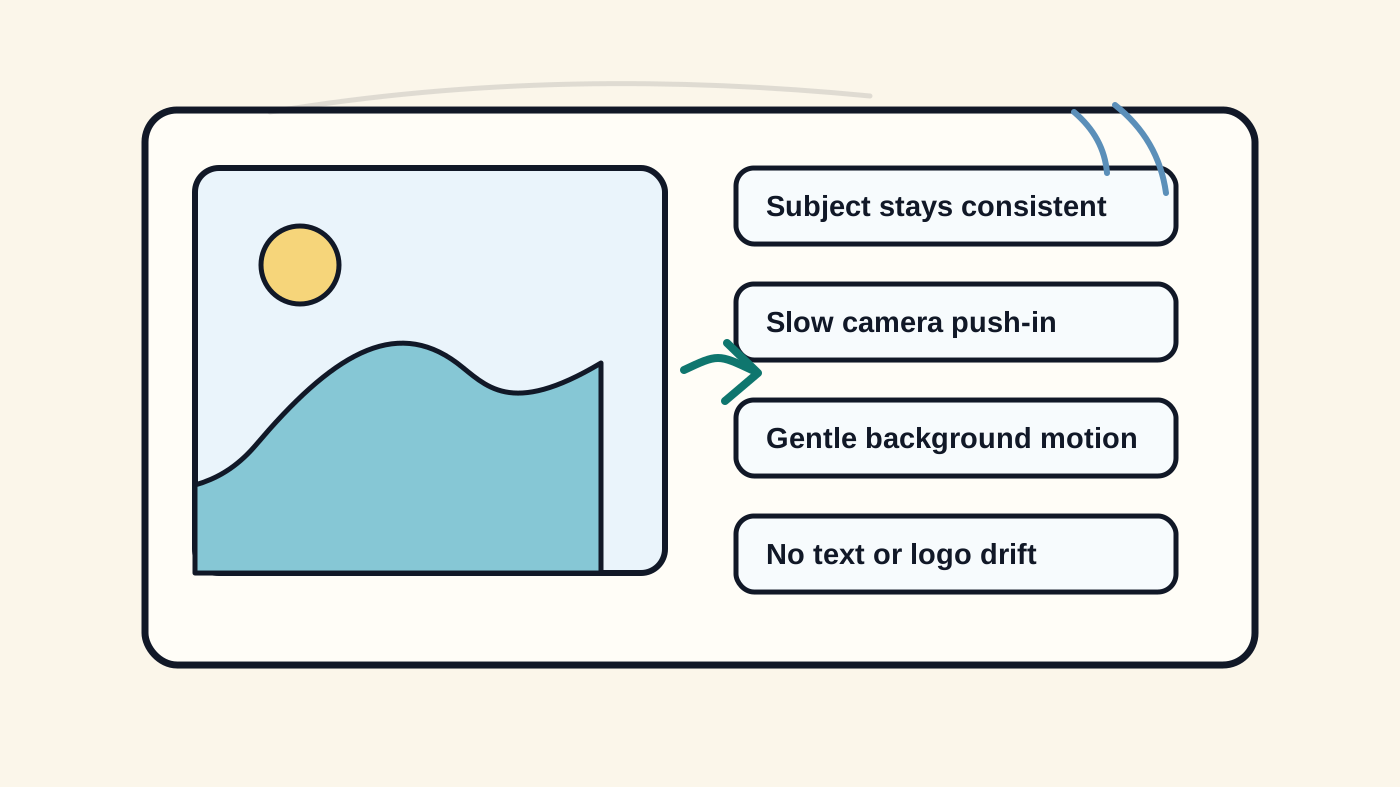
The useful pattern is not the exact wording. It is the separation of roles. The subject line protects identity. The camera line defines movement. The atmosphere line controls mood. The guardrail line tells the model what not to change.
Start from an image, prompt, or product scene in Gemini Omni.
After generation, do not only ask whether the clip looks impressive. Review it against the job it needs to do. A clip for an ad, hero section, or product page should pass a stricter consistency check than a casual social experiment.
Look for these issues first:
If the output is close but unstable, reduce the prompt. Remove extra style words, ask for slower motion, and reinforce the details that must remain fixed. If the output is visually rich but off-brand, make the source image simpler and the prompt more literal.
A good Gemini Omni image to video workflow usually has two passes. In the first pass, generate a few variations to find the best motion direction. In the second pass, tighten the prompt around the version that already works.
For example:
Version A: slow push-in, calm product showcase.
Version B: slow left-to-right camera slide, premium studio lighting.
Version C: subtle handheld motion, natural environment, stable subject.
Once one direction looks useful, keep the structure and only change one variable at a time. Change camera speed, lighting, or background motion separately. This makes it easier to understand what improved the clip and what made it worse.
Gemini Omni image to video works best as a controlled creative workflow: start with a strong image, describe a small amount of motion, review the clip against the final use case, and iterate with focused changes. The more clearly you protect the source image, the easier it is to get a video that feels polished instead of random.
For your first article-inspired test, choose one high-quality reference image and create three motion versions: slow push-in, slow camera slide, and subtle orbit. That simple comparison will teach you more than a long prompt full of style terms.
Turn ideas, text prompts, reference images, and video clips into polished visual assets with Gemini Omni. If this article helped, the fastest next step is to try the product.
Free credits on signup. Upgrade when your workflow needs more capacity.
Continue from this article into the most useful Gemini Omni tools and creative workflows.
Start from the main Gemini Omni workspace for text-to-video, image-to-video, and reference-led video testing.
Create source images, references, and campaign visuals before moving into video.
Use the video workspace when you want direct access to Gemini Omni generation controls.
Try ready-made effects when you need a fast template-style creative result.
Review the API-focused page for builders comparing Gemini Omni image generation options.
Explore related AI video and image tools across our broader creator stack.
Use MovArt when you want a broad creative video workspace with image, video, effects, and editing tools.
Use Wan 2.7 for Wan-focused model testing across text, image, reference, and audio-led workflows.
A stable Wan baseline for text-to-video and image-to-video comparisons.
Follow the newer Wan 3.0 positioning and video workflow surface.
More posts in the same locale you may want to read next.
Gemini Omni video generator pricing explained: free credits, Lite, Pro, Premium, credit packs, monthly billing, and yearly billing.
Read article
Learn how to use Gemini Omni to upload a video and edit it with prompts, including background changes, object edits, style changes, motion fixes, and multi-step refinement.
Read articleMore practical guides for AI video models, image-to-video workflows, and prompt planning.
Compare Wan model versions by capability, workflow, and practical use case.
Plan product image-to-video shots with stronger source images, prompts, and review steps.
Use a practical checklist for subject, camera, motion, lighting, and output review.
Plan prompts, first-frame inputs, and controlled Wan 2.2 generation workflows.